How to Check CS2 Float: 3 Free Methods That Take Under a Minute

Sukie · Founder & Market Tracker
Sukie has tracked the Counter-Strike skin economy since 2023, maintaining a price-history spreadsheet that covers 400+ skins and testing every major marketplace with her own inventory. She writes and updates every guide on CS2 Skin Prices herself.
Last updated: 2026-07-31
Knowing how to check CS2 float values is the cheapest skill in the entire skin economy: it costs nothing, takes under a minute, and regularly saves buyers 10-30% on a purchase. The wear number — a fixed value between 0.00 and 1.00 assigned the moment a skin is created — decides how scratched the finish looks and, through that, what the skin is worth. Sellers who know their exact numbers price accordingly. Buyers who don't are the ones paying for it.
There are three practical ways to see wear before money changes hands: the in-game inspect, the Steam Market listing preview, and a third-party checker that reveals the exact digits. This guide walks through each one step by step, compares what they can and cannot show you, and finishes with the mistakes and scams to watch for along the way.
The Three Checking Methods, Compared
Each method answers a different question, and experienced buyers use them in combination rather than picking one. Here is the honest comparison from someone who runs all three weekly:
| Method | What you actually see | Speed | Precision |
|---|---|---|---|
| In-game inspect | The 3D model with its real wear rendered, plus the tier name | Fast if the game is open | Visual only — no digits |
| Steam Market listing | Tier name in the title, small preview image, inspect button | Instant in any browser | Tier name only |
| Third-party checker (csfloat.com) | Exact float digits, paint seed, and the skin's min/max range | About 30 seconds | Exact to six decimals |
The pattern to remember: the game shows you looks, the market shows you labels, and only a checker shows you the number. Since two Field-Tested copies can sit anywhere between 0.15 and 0.38 — a range wide enough to look like different skins — the label alone is never enough for a purchase decision. My own order of operations on any real purchase: market listing to shortlist, checker to compare digits, in-game inspect for the final eye test.
Method 1: Check Wear With the In-Game Inspect
The inspect view is built into Counter-Strike 2 and is the fastest way to judge how a skin actually looks. Here is the full routine:
- Launch CS2 and open your inventory from the main menu (or press your inventory keybind mid-match).
- Select the skin you want to examine and choose Inspect — by default the F key while the weapon is equipped, or the magnifying-glass option in the inventory view.
- Rotate the model slowly and zoom in on the high-wear zones: barrel tip, magazine edges, stock corners, and the top rail. Early wear always shows there first.
- Note the wear tier printed on the item card — Factory New through Battle-Scarred.
- For a skin you are about to buy rather than one you own, open its Steam Market listing and use the Inspect in Game button, which loads the seller's exact copy into this same viewer.
Two small tips make the view more honest: inspect on a bright map or in the main menu rather than a dark corner, since lighting can hide fading, and watch the inspect animation all the way through — it rotates past spots you would not think to check manually. The limitation is precision. The inspect shows real rendered wear but never the digits, so it cannot tell a 0.15 from a 0.19 — a difference that matters when you are trying to buy at the cheap end of a tier. Treat inspect as your eyes, not your evidence.
Method 2: Get the Exact Digits With a Third-Party Checker
When the exact number matters — and for anything over about $20 I would argue it always does — you want a checker. The csfloat.com checker is the one I have used since 2023, and the process is the same on any similar tool:
- Find the item's inspect link. On a Steam Market listing, right-click the Inspect in Game button and choose Copy link address. For an item in any inventory, open it on the profile's inventory page and copy the same link.
- Open the checker site in your browser — no login, no game client needed.
- Paste the inspect link into the search box and submit.
- Read the results: the exact wear number to six decimal places, the paint seed, the skin's minimum and maximum possible floats, and usually a wear ranking against other copies.
- Sanity-check that the returned tier name matches the listing you copied from. A mismatch means you copied the wrong link.
That is genuinely all there is to how to check CS2 float digits with a checker — free, browser-based, and accurate to six decimal places. The one thing to internalize is that the number you get back is permanent: wear is set at creation and never drifts, so a check today is valid forever for that copy. If the same skin later appears in a different inventory with a different number, you are not looking at the same skin.
Checking Floats on Steam Market Listings Before You Buy
The Steam Community Market deserves its own walkthrough because it is where most beginners buy, and it hides meaningful differences behind identical-looking rows. Every listing for, say, a Field-Tested AK-47 Redline shows the same name and nearly the same price — but the copies behind those rows can sit anywhere from 0.15 to 0.38.
My buying routine there: open the listing page, and instead of grabbing the cheapest row, copy the inspect links from the first five to eight listings and run each through a checker. In March 2026 I did exactly this for a Field-Tested Redline purchase and logged the results in my spreadsheet: among the eight cheapest listings, floats ranged from 0.157 to 0.361, all within about a dollar of each other. The 0.157 was, for practical purposes, a Minimal Wear-looking skin at the same price as the scratched-up 0.361 — the kind of free upgrade this one-minute habit buys you. Remember also that Steam's 15% total fee is baked into every price, so sellers there list higher than on cash marketplaces; the wear check tells you which of those inflated rows is actually worth taking. And before you shop at all, it helps to know what a fair price even looks like for the skin and tier you want — the price tables on our CS2 skin prices homepage give you that baseline in a few seconds, so a too-good listing registers as the red flag it usually is.
What to Do With the Number Once You Have It
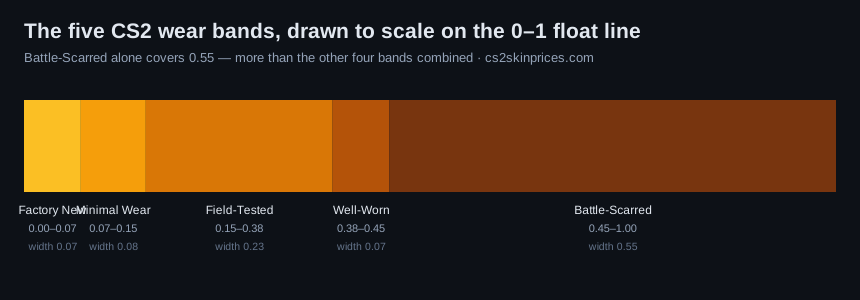
Knowing how to check CS2 float numbers is step one; knowing what the number is telling you is where the savings actually happen. A float in isolation means little; it earns its keep against the tier borders. The quick reference: Factory New runs 0.00-0.07, Minimal Wear 0.07-0.15, Field-Tested 0.15-0.38, Well-Worn 0.38-0.45, and Battle-Scarred 0.45-1.00. Three practical rules follow. First, buy near a tier's floor: a 0.16 Field-Tested is the value play, a 0.37 is the trap, even at the same price. Second, check the skin's own range — many finishes are capped, and a "great" number might simply be the best that exists. Third, at tier borders, tiny numeric differences carry big price differences, so the digits are the whole game. The full breakdown of ranges, visuals, and worked pricing examples lives in the CS2 float chart, and the float pillar guide explains why the number exists at all and how it shapes prices across the market.
If you are selling rather than buying, run the same check on your own items first. A low-float copy deserves a premium listing, and marketplaces that display exact wear will reward it — pricing a 0.151 like an average FT is donating money to whoever checks. I re-checked my own 40-item inventory when I started my spreadsheet in 2023 and found two skins sitting within 0.005 of a tier border that I had been mentally valuing a full tier too low.
Mistakes and Scams to Avoid When Checking Floats
A few failure modes come up constantly, and all of them are avoidable:
- Trusting a seller's screenshot. Screenshots of checker results are trivially edited. Always run the inspect link yourself — it takes thirty seconds and removes all trust from the equation.
- Fake "checker" websites. Phishing sites imitate popular checkers and ask you to log in with Steam or grant API access; a real checker needs neither for a simple lookup. If a lookup tool wants your credentials, close the tab.
- Checking the tier but not the digits. Paying a Minimal Wear price for a 0.149 listing is the most common expensive shrug in the market.
- Confusing wear with pattern. The paint seed is a separate value; on skins like Case Hardened it can matter more than wear. Check both before paying a premium.
- Rushing a trade offer. Scammers count on you skipping verification in the excitement of a "good deal." The wider tricks — API-key hijacks, fake middlemen, switch-outs — are covered in our guide to CS2 skin scams, which I would read before your first big trade.
If you are brand new to buying, the first skin buying guide folds all of this into a single start-to-finish walkthrough, wear checks included.
Frequently asked questions
Is checking a CS2 float free?
Yes, completely. The in-game inspect is part of the game, Steam Market previews are free to browse, and third-party checkers like csfloat.com run inspect-link lookups without charging or requiring an account.
Can I check a float on a skin I don't own?
Yes — that is the main point of the inspect link. Any Steam Market listing and any public inventory exposes one, and pasting it into a checker shows that exact copy's digits before you commit to buying or trading.
Does the in-game inspect show the exact float number?
No. It renders the skin's true wear visually and shows the tier name, but the precise digits never appear anywhere in the game client. For the number itself you need a third-party checker.
What exactly is an inspect link?
It is a special URL attached to every skin listing and inventory item that tells the game client which exact copy to display. Checker sites read the same link to pull the item's wear value, paint seed, and other attributes.
Can a float be faked in a trade offer?
The number itself cannot be altered — it is fixed at creation. What gets faked are screenshots and lookalike items, such as a Well-Worn copy standing in for the Field-Tested one you inspected earlier. Verify the actual item in the offer window, not a picture of it.
Is it worth checking floats on cheap skins?
For a $2 skin, the stakes are low and the tier name is usually enough. The habit starts paying real money somewhere around the $20 mark, and above $100 I would call skipping the check negligent. The time cost is identical either way.
Why do two skins with the same wear tier look so different?
Because tiers are ranges, not points — Field-Tested alone spans 0.15 to 0.38. Add the paint seed, which shifts where the finish pattern sits on the weapon, and two same-tier copies can genuinely look like different skins.
Can I check a float without the game installed?
Yes. The checker method is entirely browser-based: copy the inspect link from any Steam Market listing or inventory page and paste it into the checker. Phone or laptop, no game client required — only the in-game inspect method needs CS2 running.